Fixing the Missing Substack Logo in Squarespace
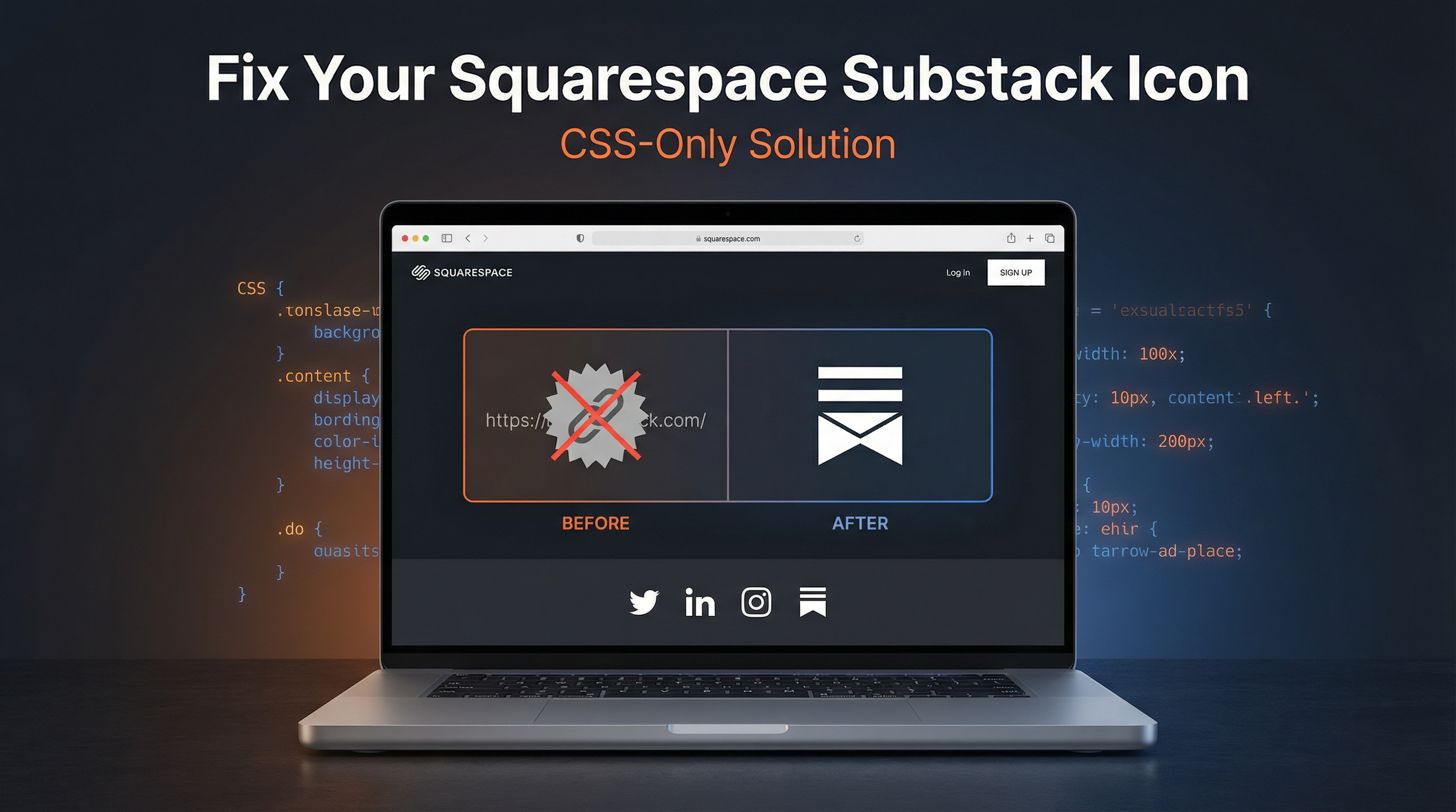
I added my Substack link in Squarespace the same way you add every other social icon: drop it into the social links area, save, move on. Except Squarespace doesn’t ship a native Substack icon in a lot of templates, and when it doesn’t recognize the domain as a “known” social network, it falls back to the generic URL icon.
That would be fine if the generic URL icon looked fine.
It didn’t.
Depending on your template, you can end up with a weird placeholder icon, a mismatched shape, or something that looks like it belongs in a 2009 toolbar. If you’re trying to keep a clean header and footer, that one icon sticks out like a missing tooth.
So here’s the fix: swap the icon with CSS only, no custom scripts, no messing with the template’s SVG library, and no dependency on Squarespace “maybe one day” adding Substack.
What we’re doing
Squarespace renders social icons as SVGs. When it doesn’t know the network, the Substack link gets categorized as a URL icon.
So instead of trying to convince Squarespace to understand Substack, we do something simpler:
Hide the broken/generic SVG only for links that contain
substack.com.Overlay a Substack logo using a CSS pseudo-element (
::before).Keep it scoped to header icons and footer icons, so you don’t accidentally change other URL links.
This approach is “boring good.” It’s stable, it’s lightweight, and it doesn’t break when you change a color theme or layout block.
Why this works (and why it’s better than “custom code blocks”)
You’ll see some folks handle this by injecting HTML in a Code Block, or hacking in an image link next to the icons. That works until:
the header layout changes,
mobile styling collapses,
the icon hover states look different,
or Squarespace updates a class name and the whole thing disappears.
CSS targeting the existing icon wrappers is cleaner because you’re not fighting the layout system. You’re just swapping the visual asset.
The replacement CSS (header + footer)
This is the exact CSS you can drop into Design → Custom CSS.
It handles both places you typically show social icons:
Footer social icons
Header social icons
And it assumes you’re using the icon style with no border (which is how mine is set up).
/* CSS-Only Substack Icon Fix - Both Header and Footer */

/* ===== FOOTER ICONS ===== */
/* Hide the broken generic URL icon in footer */
a.sqs-svg-icon--wrapper.url[href*="substack.com"] svg {
  opacity: 0;
}

/* Position for the replacement icon in footer */
a.sqs-svg-icon--wrapper.url[href*="substack.com"] {
  position: relative;
}

/* Add the white Substack logo in footer */
a.sqs-svg-icon--wrapper.url[href*="substack.com"]::before {
  content: "";
  position: absolute;
  top: 50%;
  left: 50%;
  transform: translate(-50%, -50%);
  width: 18px;
  height: 18px;
  background-image: url('data:image/svg+xml;utf8,<svg xmlns="http://www.w3.org/2000/svg" viewBox="0 0 64 64" fill="white"><path d="M60 14.416H4v7.564h56v-7.564ZM4 28.832V64l28-15.704L60 64V28.832zM60 0H4v7.56h56z"/></svg>' );
  background-size: contain;
  background-repeat: no-repeat;
  background-position: center;
  pointer-events: none;
}

/* ===== HEADER ICONS ===== */
/* Hide the broken generic URL icon in header */
a.header-icon[href*="substack.com"][aria-label="URL"] svg {
  opacity: 0;
}

/* Position for the replacement icon in header */
a.header-icon[href*="substack.com"][aria-label="URL"] {
  position: relative;
}

/* Add the white Substack logo in header */
a.header-icon[href*="substack.com"][aria-label="URL"]::before {
  content: "";
  position: absolute;
  top: 50%;
  left: 50%;
  transform: translate(-50%, -50%);
  width: 18px;
  height: 18px;
  background-image: url('data:image/svg+xml;utf8,<svg xmlns="http://www.w3.org/2000/svg" viewBox="0 0 64 64" fill="white"><path d="M60 14.416H4v7.564h56v-7.564ZM4 28.832V64l28-15.704L60 64V28.832zM60 0H4v7.56h56z"/></svg>' );
  background-size: contain;
  background-repeat: no-repeat;
  background-position: center;
  pointer-events: none;
}
How to install it in Squarespace
Go to Design → Custom CSS
Paste the CSS
Hit Save
Hard refresh your site (or open in an incognito window)
If you’re using caching or testing in Squarespace’s editor preview, you might see a delay. Incognito is usually the fastest truth test.
Common gotchas (the stuff that makes you think it “didn’t work”)
1) Your Substack link isn’t actually substack.com
If your link is something like https://newsletter.yourdomain.com, the selector won’t match.
Fix: update the selector to include your custom domain too:
add another selector that targets
href*="newsletter.yourdomain.com"or swap
substack.comfor a broader match that still only hits your Substack link
2) Your header icon markup is different
Squarespace themes vary. Some use a.header-icon, others wrap icons differently.
The footer selector (a.sqs-svg-icon--wrapper.url) is pretty common. The header selector may need a tweak depending on the template.
If the footer works but the header doesn’t, that’s usually why.
3) Your icons have borders
This CSS is designed for “no border” social icons. If you have circles or squares around icons, you may need to slightly adjust sizing or center alignment so the Substack logo doesn’t look cramped.
Quick customization
Change icon size
Update width and height from 18px to whatever matches your other icons (16, 20, etc.).
Change icon color
Right now the SVG is fill="white". If your icons are black, swap to:
fill="black"
Or for a specific hex color, you can use a fill value like %23000000 style encoding, but the simplest path is usually white/black unless you’re matching a brand accent.
The real takeaway
This is one of those tiny operator moves that matters more than it should.
Nobody visits your site because your Substack logo is perfectly rendered. But they absolutely notice when something looks off, especially in the header. Little inconsistencies signal “unfinished,” even if the rest of the site is solid.
CSS-only fixes like this are the sweet spot: no plugins, no scripts, no maintenance treadmill. Just a clean patch that keeps your brand presentation tight.